Restore PostgreSQL Backup and setup PostgREST API
Summary
This document will guide you through restoring the backup in PostgreSQL database and having the PostgREST API setup.
- Walkthrough
- Install PostgreSQL
- Install PostgreSQL 13 from the following link Download PostgreSQL (enterprisedb.com)
- Configure Environments
- Add PostgreSQL BIN to PATH:
C:\Program Files\PostgreSQL\13\bin - Add PostgreSQL LIB to PATH:
C:\Program Files\PostgreSQL\13\lib - Additional packages
While installing PostgreSQL, you will be prompted to download additional packages. Download these packages as they can come in handy.
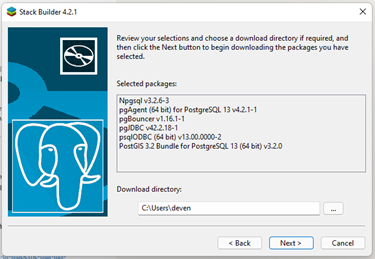
Restore database
Once you have the database installed along with its additional packages. Open pgAdmin 4. Before restoring the backup, you need to create the database in which you will restore the tables and its appropriate users.
- Create a new database titled
3DAbsecon - Then to create new roles, go to the Query Tool
- Create a role to be used for anonymous web requests:
CREATE ROLE web_anon NOLOGIN; - Create a connector/authenticator role:
CREATE ROLE custom_auth NOINHERIT LOGIN PASSWORD 'gqc1';
GRANT web_anon TO custom_auth;
- Once these roles are created, restore the database.
- Select the SQL file to restore the backup.
- If the restore fails, check the added users again and their privileges.
- Finally, open the Query Tool again and execute these commands.
GRANT USAGE ON SCHEMA citydb TO web_anon;
GRANT SELECT ON citydb.building TO web_anon;
GRANT SELECT ON citydb.citymodel TO web_anon;
GRANT SELECT ON citydb.cityobject TO web_anon;
GRANT SELECT ON citydb.generic_cityobject TO web_anon;
- Once the restore is finished, you can now move to configuring PostgREST. (sections after this have been taken from the
PostgREST API Walkthrough.)
Install PostgREST
- Download the latest Win x64 release: https://github.com/PostgREST/postgrest/releases/tag/v8.0.0
- Extract the contained exe to a suitable folder. This could be in the POstgreSQL directory, or a new directory. For now, I created a new directory under
C:\Program Files\calledPostgRESTand put the exe in there.
Run Server
- Navigate to a directory you have write permissions to such as your documents directory or project subdirectories.
- Create a configuration file for the citydb database, i.e.:
citydb.conf - Modify the new configuration file:
 db-uri = "postgres://custom_auth:gqc1@localhost:<port>/<db_name>"
 db-schema = "citydb"
 db-anon-role = "web_anon"
 server-port = 3001
- Open a command prompt.
Run the server against the conf file:
postgrest citydb.conf
NOTE: If you get an error cannot access port error, try changing the server-port value defined in the configuration file.
- Open a browser and check that data is retrieved from a simple query:
http://localhost:3001/cityobject